
Standard flyer sizes
Most of the world uses the A sizes, where each size is half the one before it. North America uses US Letter and its halves. The most common flyer sizes:
| Size | Millimetres | Inches | Good for |
|---|---|---|---|
| A6 | 105 × 148 | 4.1 × 5.8 | Handouts, postcards, counter cards |
| A5 | 148 × 210 | 5.8 × 8.3 | The everyday flyer: handouts and door drops |
| DL | 99 × 210 | 3.9 × 8.3 | Leaflets that fit a standard envelope, price lists |
| A4 | 210 × 297 | 8.3 × 11.7 | Noticeboards, shop windows, menus |
| Half Letter | 140 × 216 | 5.5 × 8.5 | The North American handout size |
| US Letter | 216 × 279 | 8.5 × 11 | Noticeboards and windows in North America |
Choosing a size
- Handing it out? A5 or A6 fits in a hand, a pocket or a bag, and costs less per copy.
- Pinning it up? A4 or US Letter is big enough to be read from a step or two away on a noticeboard.
- Putting it through doors or in envelopes? A5 or DL.
- On a wall or in a window for passers-by? Consider a poster size such as A3 instead.
Remember that the same design doesn't simply shrink: text that's readable on A4 may be too small on A6. Design at the size you'll print, and check the smallest text on a test print.
Paper weight and finish
Paper weight is measured in grams per square metre (gsm, or g/m²). Heavier paper feels more substantial and lasts longer, but costs more and not every printer can feed it.
| Weight | Feels like | Use |
|---|---|---|
| 80–100 gsm | Office paper | Quick home prints, drafts, notices |
| 130–170 gsm | Good flyer paper | Most printed flyers |
| 200–250 gsm | Thin card | Premium flyers, menus |
| 300–350 gsm | Card | Postcards, invitations, counter cards |
Finishes change the look and feel. Gloss makes photos and colours pop; silk (or satin) is a softer sheen that's easy to read under bright light; matt and uncoated papers look understated, and uncoated paper is the easiest to write on, which matters for a form or a sign-up sheet.
Printing at home
A home or office printer is fine for small numbers and quick turnarounds. A few settings make the difference between a crisp flyer and a disappointing one:
- Print from a PDF, not a screenshot or an image saved from a message.
- Set the scale to Actual size or 100%, not "Fit to page", so the sizes stay as designed.
- Choose the right paper size and type in the print dialog, and pick a quality or photo setting for heavier paper.
- Print one test copy first, check it at arm's length, then print the rest.
Several flyers on one sheet
Because each A size is half the one before, two A5 flyers fit exactly on an A4 sheet, and four A6 flyers do too. In your print dialog, choose "2 pages per sheet" (or 4), print, and cut the sheets in half (or quarters) with a ruler and a craft knife, or a paper trimmer. The same works with Half Letter on US Letter paper.
To get two copies of the same flyer on one sheet this way, make your design two pages long with the same flyer on both.
Double-sided flyers
For a front and back, make a design with two pages and print double-sided. The setting is usually called "flip on long edge" for a portrait flyer read like a book page; "flip on short edge" turns the back upside down for portrait flyers. Print one copy to check before printing a stack.
Folded leaflets
A folded leaflet fits more information into a pocket-sized piece. The two common folds start from an A4 sheet:
- Bi-fold (half-fold): an A4 sheet folded in half makes four A5 panels: a cover, two inside panels and a back.
- Tri-fold (roll fold): an A4 sheet folded in three makes six DL-sized panels, each about 99 mm wide, the classic leaflet that fits an envelope.
Plan what goes on each panel before designing, and remember the order people see them: the front cover first, then the inside panels as the leaflet opens, with the back panel last. Keep text away from the folds, where it can crack or disappear into the crease, and print one copy to fold by hand before ordering a batch.
How many to print
Print what you can realistically hand out or post before the information goes out of date. For an event, that's often a few dozen for noticeboards and shops, plus a stack for handing out. For a business flyer with no date on it, a larger run usually costs less per copy at a print shop. Online printers often show the price per copy at different quantities, which makes it easy to see where the savings stop being worth it.
Using a print shop
For more than a few dozen copies, heavier paper or a professional finish, a print shop or online printer is usually cheaper and better. Tell them, or choose when ordering:
- The size (A5, DL, US Letter…) and quantity.
- The paper weight and finish.
- Single- or double-sided.
- The file: send a PDF.
Bleed, and why printers ask for it
Print shops print on larger sheets and trim them down, and the trim can wander by a millimetre or two. If your design has colour or a picture running to the edge, they may ask for bleed: an extra 2 to 3 mm of background beyond the trim line, so no white sliver shows. A PDF made at the exact flyer size has no bleed, so ask the printer how they'd like to handle it; many can work from a file without bleed if the design keeps a white border or tolerates a slight trim.
Colours on screen and on paper
Screens make colour from light, while printers mix inks, so very bright blues, greens and oranges can come out slightly duller on paper. For an important or large print run, ask for a printed proof before the full order.
A pre-print checklist
- Spelling, dates, times, prices and phone numbers checked twice.
- Important text at least 5 mm from every edge.
- Photos sharp at the printed size.
- The right size and orientation chosen.
- One test print checked at arm's length.
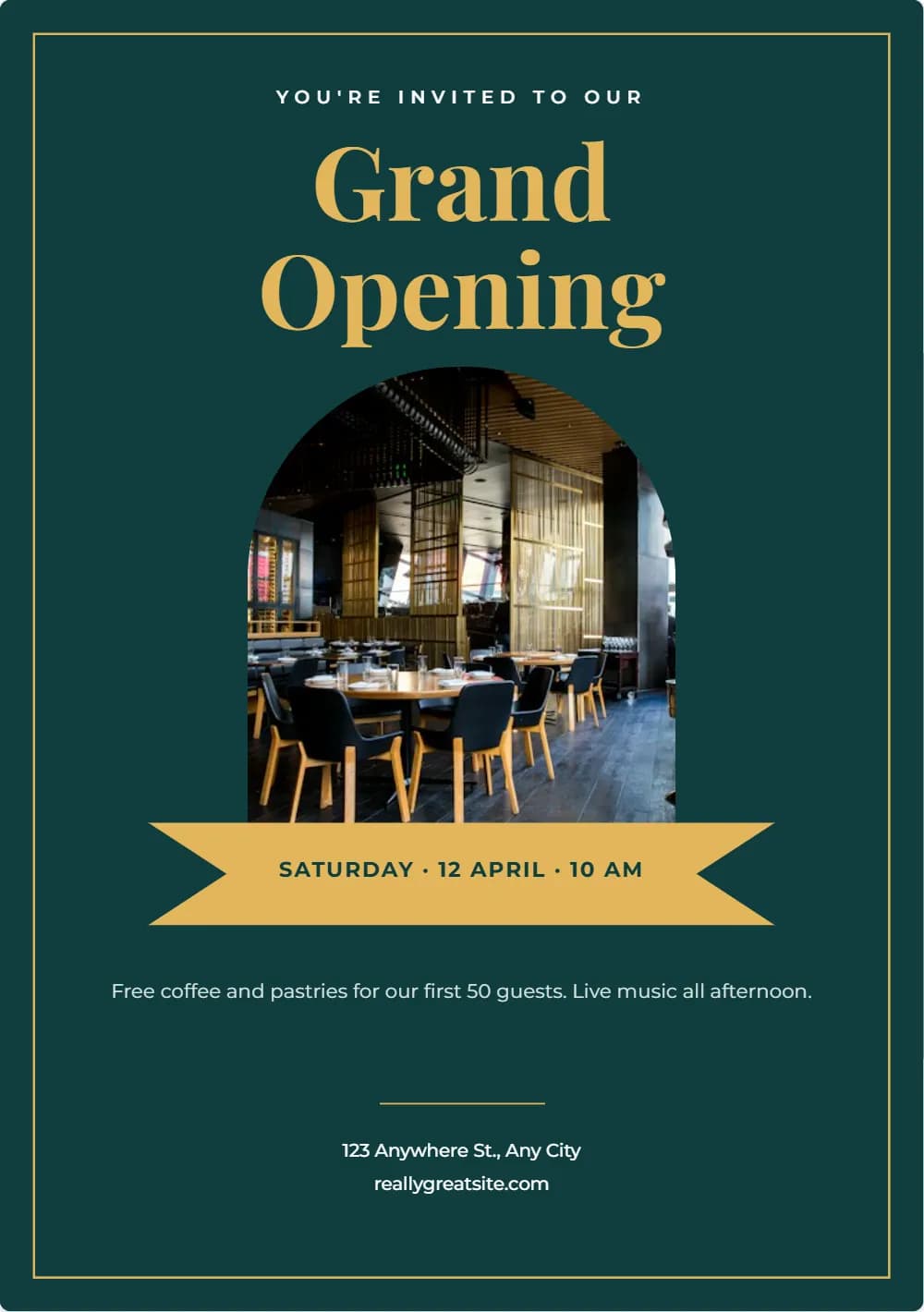
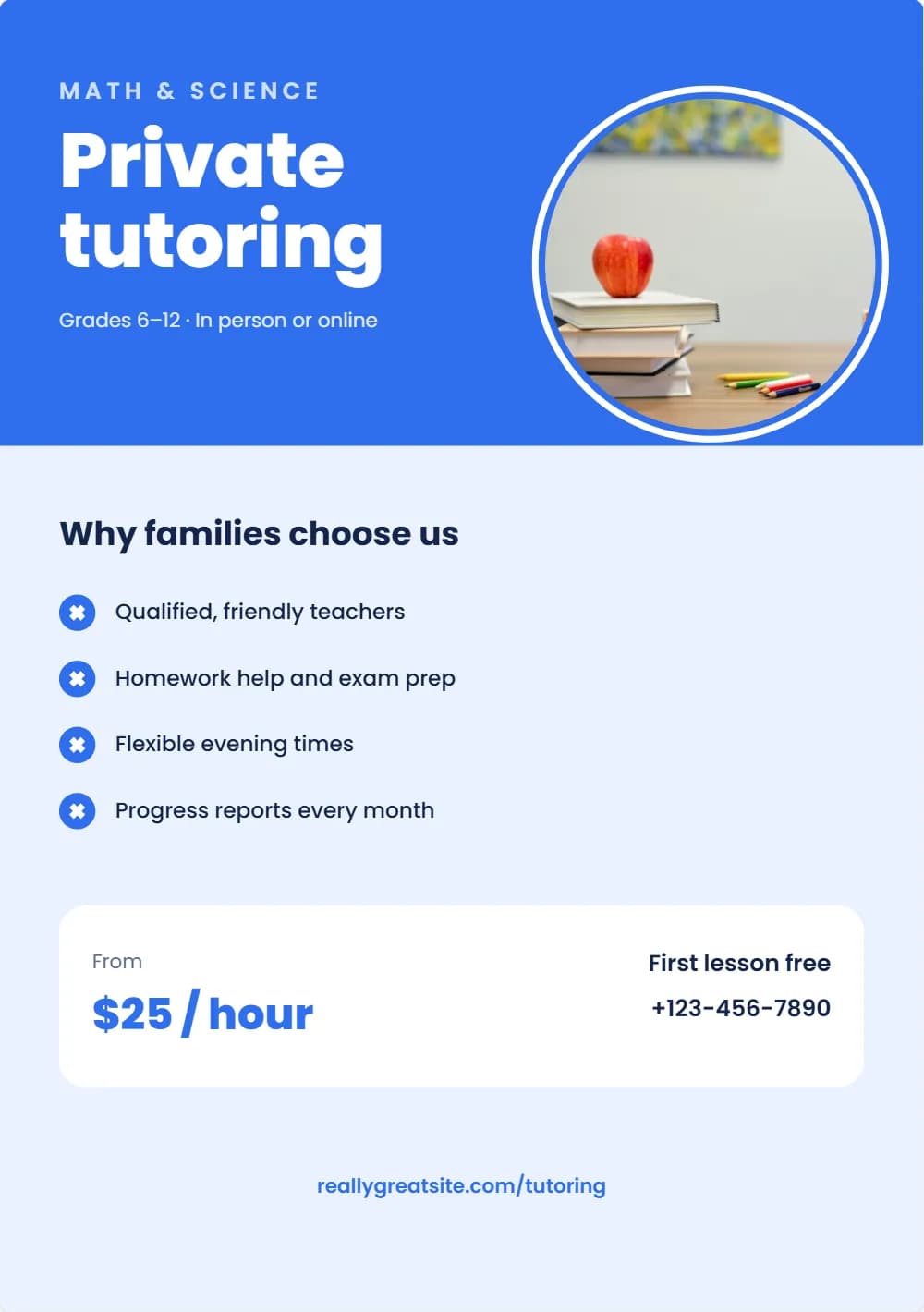
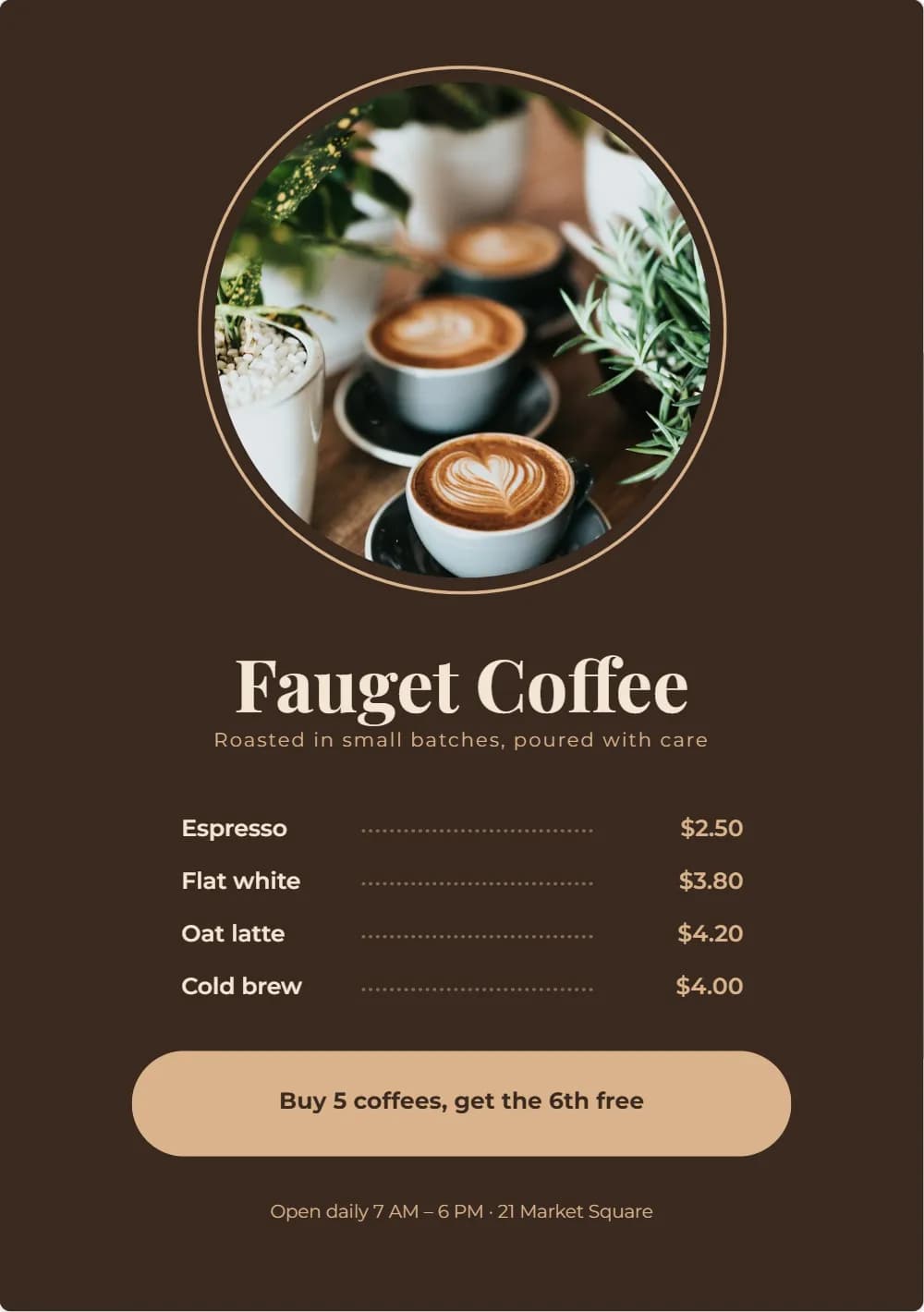
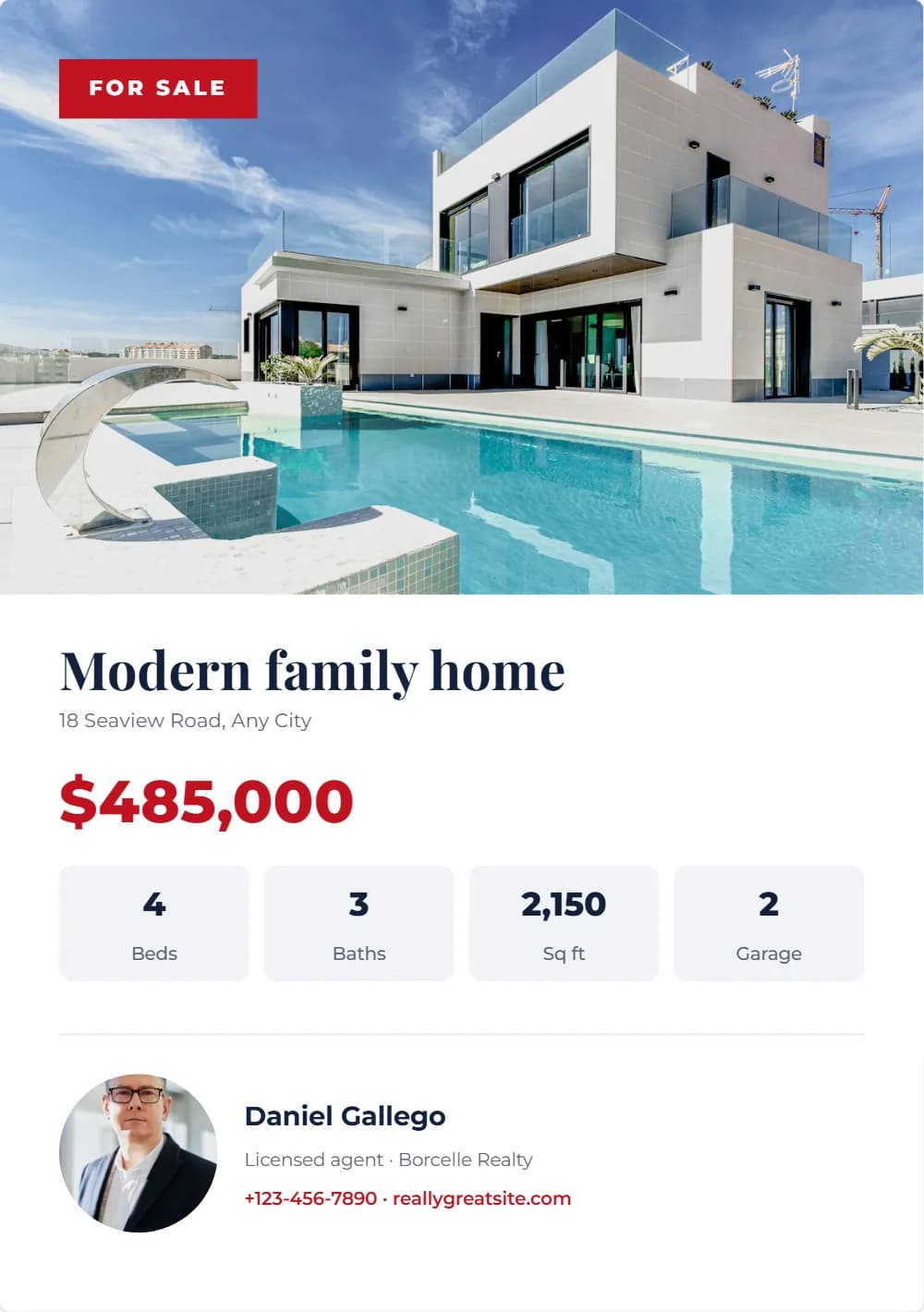
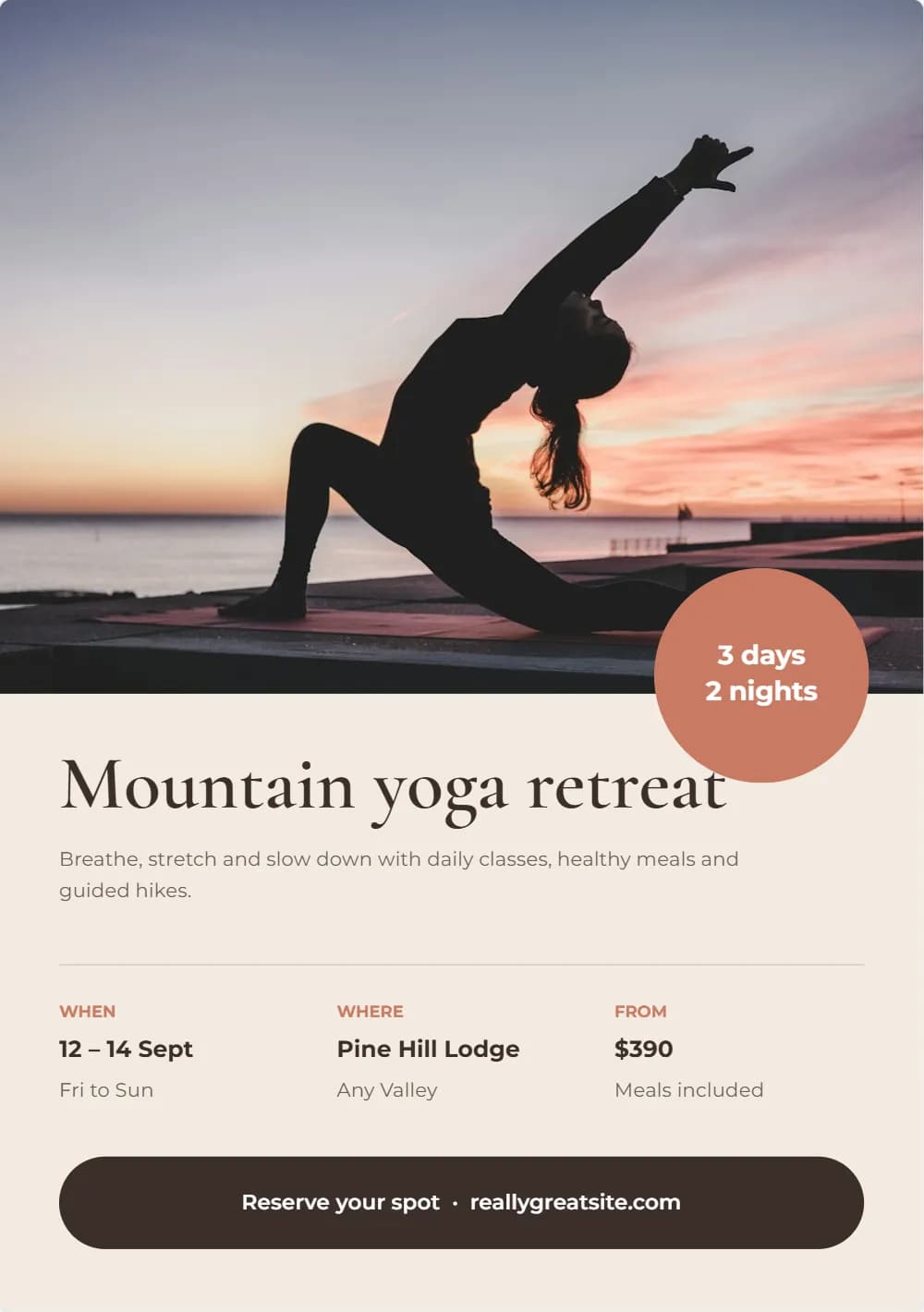

Print your flyer from Layquil
Flyers in the flyer maker are A5 (148 × 210 mm). A4 and US Letter pages are among the sizes on the home page, and Custom size starts any other size in millimetres, centimetres, inches or pixels: DL is 99 × 210 mm. For a double-sided flyer, add a second page for the back.
With a free account, download a PDF for a print shop, or print straight from the editor with File → Print (Ctrl+P), which prints each page on paper of its own size. For design advice before you print, see how to design a flyer.